This article is related to the product: Advanced Shipping Rates for WooCommerce
In this post, we’ll explore how to set shipping rates per product in WooCommerce easily and effectively, ensuring each item has the appropriate shipping cost.
Sometimes we come across products that may require very different shipping conditions compared to the rest of the items offered in our store. Some businesses choose not to sell certain products simply to avoid the challenge of setting specific shipping rates or conditions for them.
Why Use Product-Specific Shipping Rates in WooCommerce?
Every store is unique. But it’s quite common to have one or more products that complement your main offering—such as upsells or related accessories—that have very different shipping requirements compared to your core catalog.
In other cases, some products can’t be sold in certain parts of the world, or their shipping costs vary so much that you may want to exclude them from specific locations or apply entirely different shipping rates.
In all of these situations, you face the need to set highly specific conditions—often with the fear of breaking your existing shipping setup or making things overly complex.
If you keep reading, you’ll see that’s neat to set per-product exceptions using Advanced Shipping Rates for WooCommerce PRO.
How to add shipping rates per product in WooCommerce
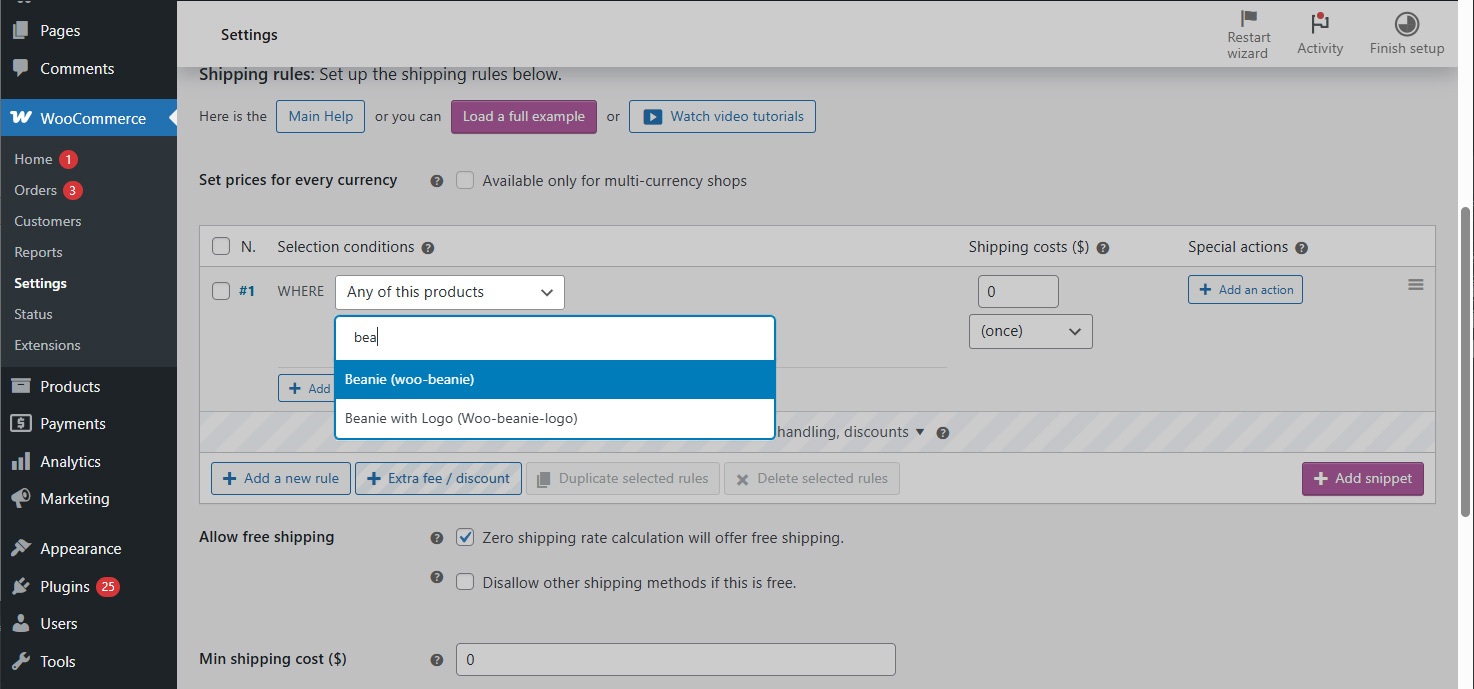
You can set rules based on specific products by using the “Any of these products” selector. A searchable product field with autocomplete will appear, allowing you to select one or more products:
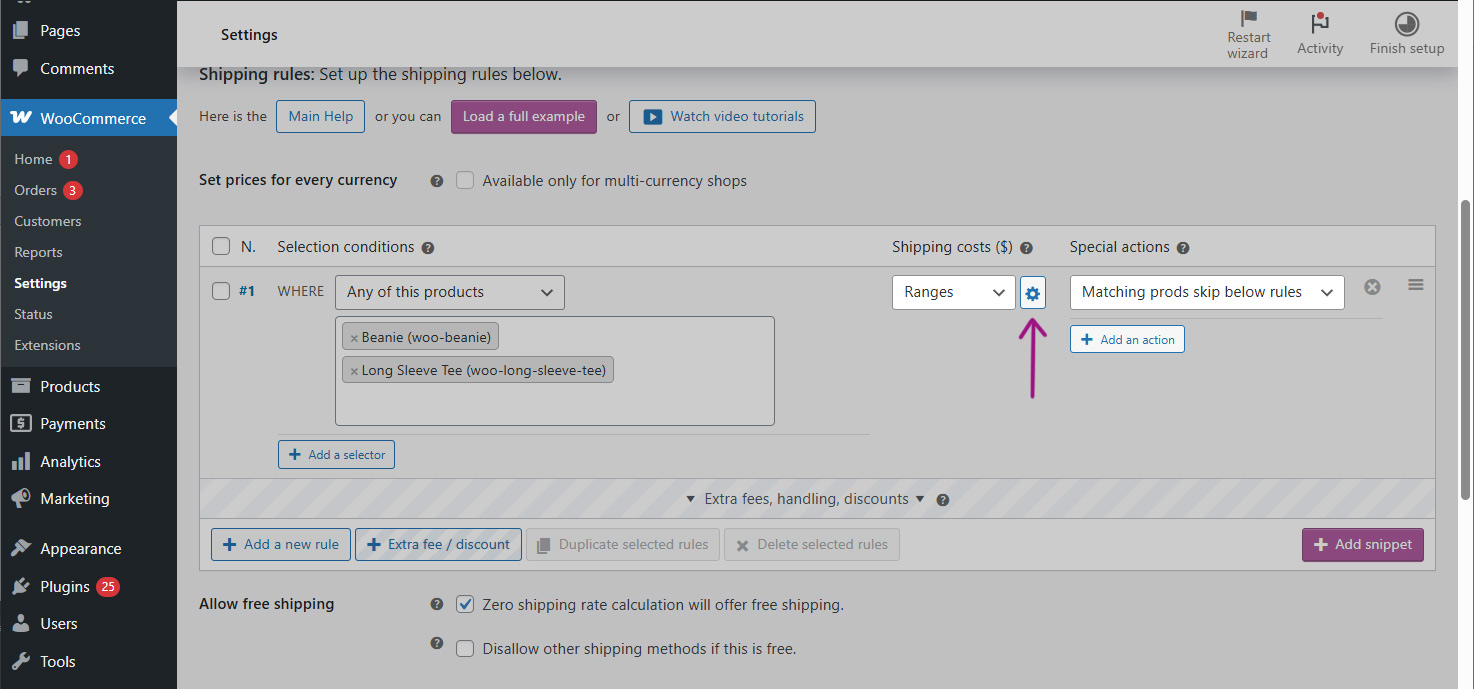
You can then assign specific shipping costs to this rule, as well as set special actions that will only be triggered when these products are in the cart.
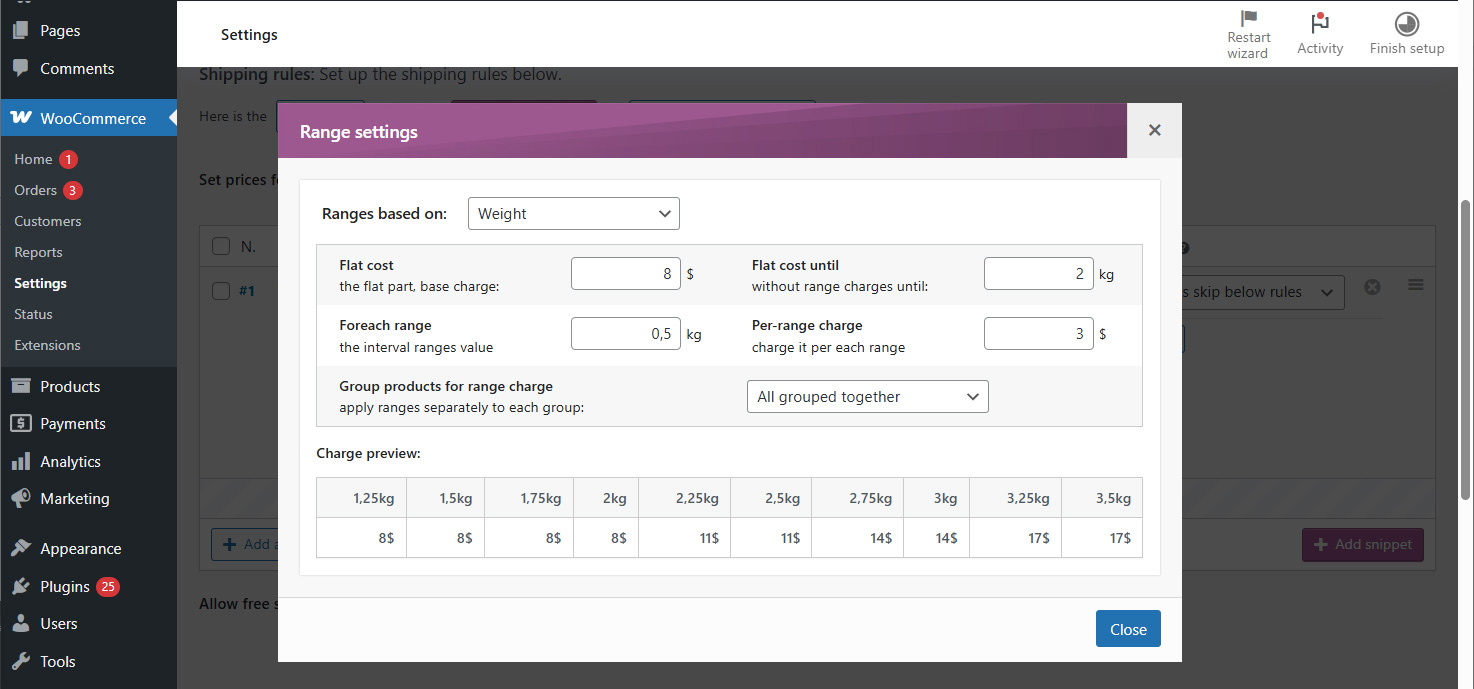
For example: you may want to apply a specific pricing table for certain products based on their weight, and make sure that later rules don’t apply additional charges to those items:
How to Disable Shipping Methods for Specific Products
There may be cases where you want a specific shipping method to be unavailable when certain products are in the cart.
In this case, you can combine the “Any of these products” selector with the special action “Abort shipping method”. To achieve this, follow these steps:
- Add a new rule and drag it to the top of the list
- Use the “Any of these products” selector and choose the relevant products
- Add the special action “Abort shipping method”

Important: Make sure there’s at least one other shipping method available for the same shipping zone — otherwise, no one will be able to purchase those products (unless that’s exactly what you want!).
How to block checkout or prevent sales for Specific Products
Sometimes, certain products simply can’t be shipped to specific shipping zones.
In this case, instead of repeating the rule from the previous section across all shipping methods, you can choose to hide all shipping methods entirely.
To get it, follow this steps:
- Add a new rule and move it to the top of the list
- Use the “Any of these products” selector and choose the affected products
- Add the special actions: “Hide other shipping methods” and “Abort shipping method”
- Optionally, you can also add a “Show notice message” or “Change cart totals messages” action to inform your customers why the purchase can’t be completed.


How to Add Extra Handling Fees for Specific Products
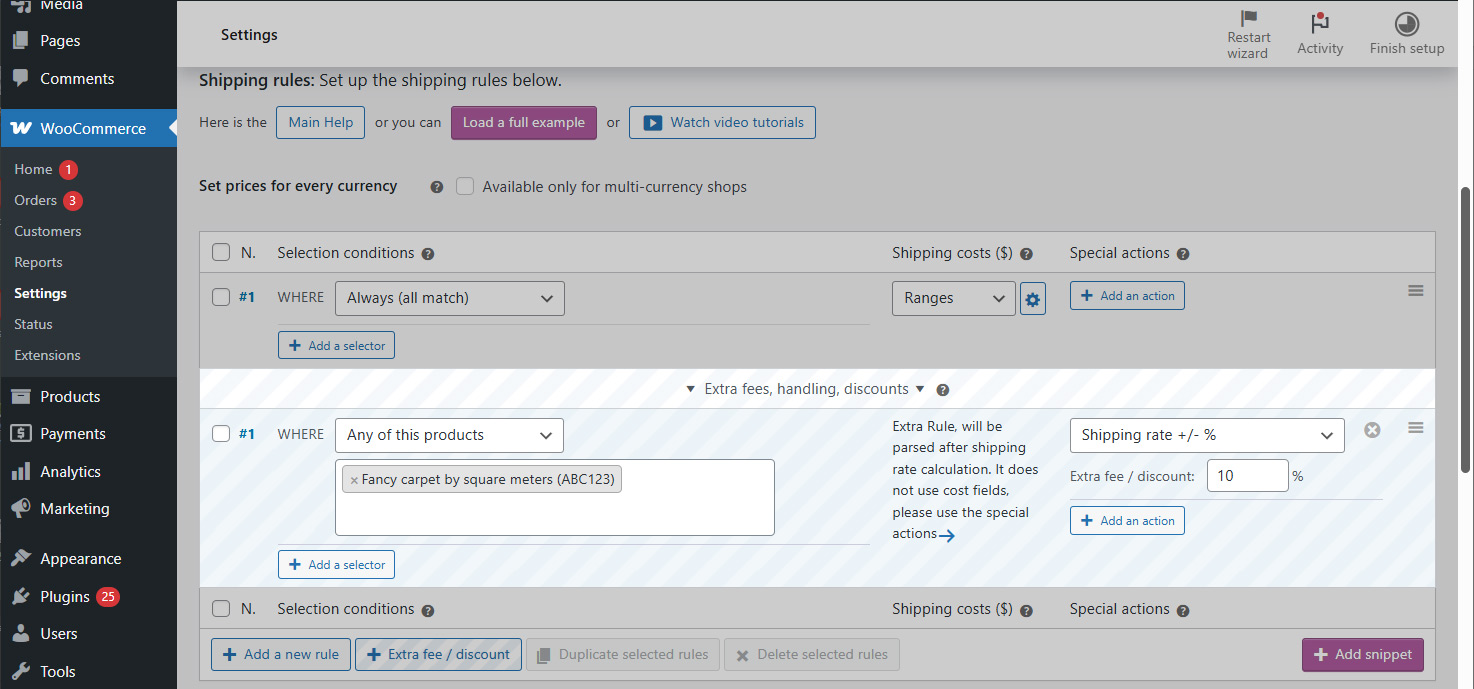
In the rules table, there’s a section at the very bottom that allows you to apply extra fees.
Unlike regular rules, this section is executed after the total shipping cost is calculated — which unlocks a special action: applying a percentage-based fee over the total shipping cost.
- Click the “+Extra fee / discount” button
- Use the “Any of these products” selector and choose the relevant products
- Add the special action “Shipping rate +/- %”
Use Cases: When and Why to Apply Product-Specific Shipping Rules
When one or a few products require a different shipping approach compared to the rest of your store’s catalog, it’s often a good idea to create specific shipping rates—or even dedicated shipping methods—just for those products.
In some cases, it might also be necessary to block the sale of certain products, exceptional in terms of shipping, in specific shipping zones.
Here are some common examples:
- A fragile product that can’t be shipped to distant shipping zones
- A heavy product that can’t be shipped by air
- A perishable product that can’t be shipped to remote areas
- A bulky or heavy item that must be shipped on a pallet and requires a different cost structure
- A fragile product that must be shipped with a specific courier
- A fragile product that requires an added insurance cost
- Two products that are incompatible for shipping together
Negative Logic: Applying Rules When NONE of These Products Are in the Cart
This feature can be very useful but often goes unnoticed: the ‘NONE of these products‘ selector is the final piece of the puzzle when setting shipping rates per product in WooCommerce.
This selector works similarly to the well-known “ANY of these products,” but with a completely opposite approach. Instead of applying a rule when any of the selected products are in the cart, this rule only activates when none of the specified products are in the shopping cart.
This negative logic is especially practical when you want to set general conditions that apply to most products but need to create specific exceptions for a smaller group. For example, you can define standard shipping rates that apply to your entire catalog except for certain products that have special shipping or pricing requirements.
By setting up two rules—one with “NONE of these products” and another following it with “ANY of these products”—you can easily and visually differentiate the shipping rates for these different product groups.
In summary, this tool allows you to precisely control when to apply general shipping rates, ensuring that exceptional products are handled in a differentiated and optimal way.
When NOT to use per Product-Specific Shipping Rates
If the exception applies to many products, we recommend considering the use of a shipping class instead of individual product selectors.
Here are some common examples of products that need special shipping conditions:
- Fragile product
- Fresh product
- Heavy product
Shipping classes have the limitation of being unique per product (a product can’t belong to more than one shipping class).
If you’re already using them for another purpose, consider using Product tags or Product categories instead.
You can create shipping rules based on any of these three taxonomies:
Shipping class, Product category, or Product tag.
Need to Set Rules for Multiple Products? Check the SKU-Based Method
Another way to group products is by using their SKUs.
Our selector supports wildcards and multiple SKUs, so if you have an entire range of products with exceptional shipping requirements, this might be a good solution for you: How to Set Product-Based Shipping Rates in WooCommerce using SKU (and Wildcards)
By customizing shipping rates per product in WooCommerce, you can improve customer satisfaction by reducing concerns, boosting confidence, setting fair shipping rates, and streamlining your shipping process.