This article is related to the product: Advanced Shipping Rates for WooCommerce
Setting differentiated shipping costs for each product can sometimes be challenging — especially when managing a large catalog. Exceptions can complicate the setup, make it confusing, and hard to maintain, and in worst cases, lead to errors in your Product-based Shipping Rates.
Using SKUs (the product reference codes) to define product-based shipping rules in WooCommerce offers a powerful and flexible way to manage exceptions in shipping rates more efficiently.
In this article, we will explore how to create shipping rules by SKU, including how to use wildcards to easily cover multiple products of the same type.
What Is an SKU in WooCommerce and Why You Should Use It for Product-Based Shipping?
A SKU (Stock Keeping Unit) is a unique identifier assigned to each product in your WooCommerce store. It helps you manage inventory and distinguish between products—especially when they share similar names or categories.
You can use SKUs flexibly; this means you can assign the same reference code you already use in your warehouse, invoicing system, or with clients and suppliers to clearly identify each product
How to set a product’s SKU:
- Edit the product
- Go to the “Inventory” tab
- If the product has variations, assign a unique SKU for each one
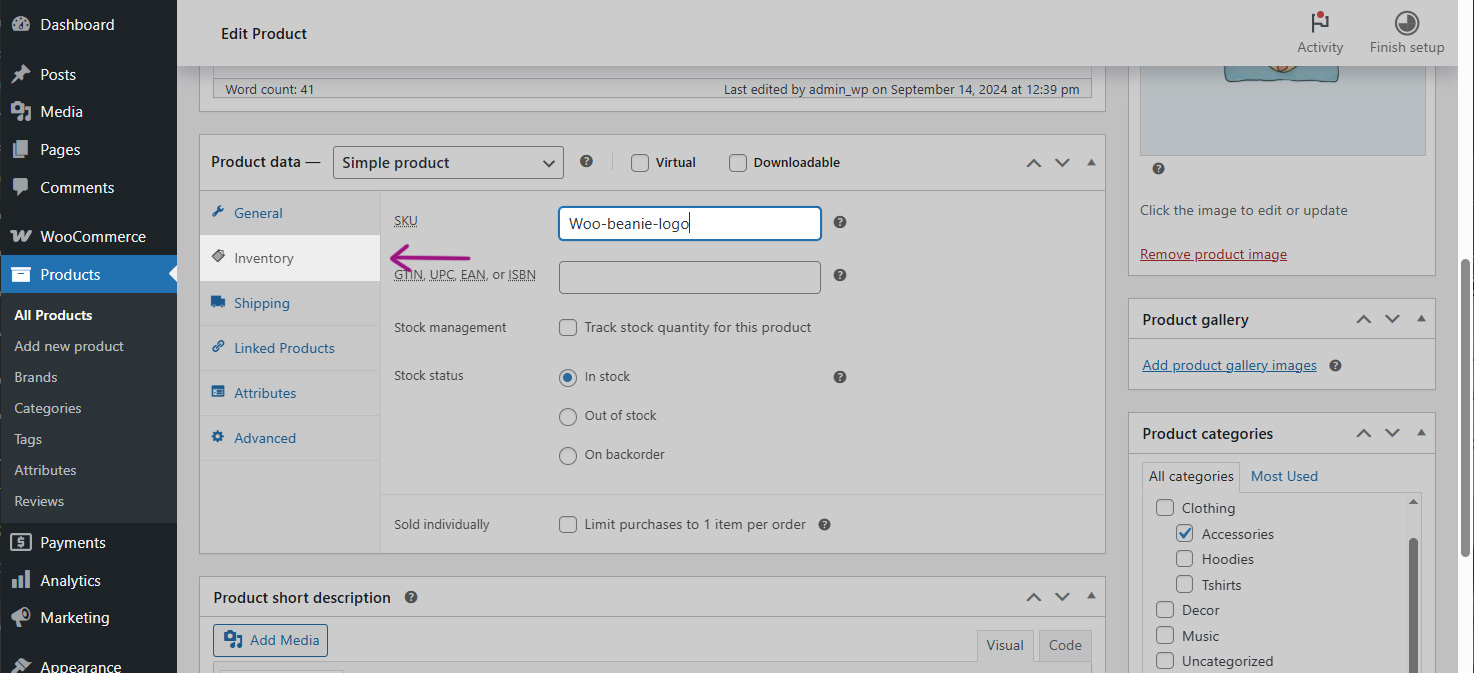
Usually, SKU codes follow a pattern. For example, all products of a certain type may use the same prefix. A typical structure looks like this:
[PRODUCT TYPE]-[CODE/NUMBER]-[VARIATION/NS]
Example: SHIRT-M32-XL-BLK
Note: When a product has variations, each one has its own unique SKU.
Using SKUs for Product-Based Shipping Rules is highly advantageous because:
- SKUs are unique and unambiguous, reducing the risk of applying incorrect Shipping Rules by SKU.
- You can group related products by using consistent SKU patterns as an alternative to shipping classes.
- SKUs allow for precise segmentation without relying on categories or tags, which are often marketing-oriented and can be broad, overlapping, or fragmented.
- It simplifies the maintenance of Product-Based Shipping Rules, especially in stores with many similar products and growing catalogs.
Why Use Product-based Shipping Rates by SKUs in WooCommerce?
While categories and tags help segment products, SKUs offer much finer control—especially when products within the same category have different shipping requirements.
Typically, products that belong to the same family share an SKU prefix and also have similar properties, such as:
- Large or small
- Heavy or lightweight
- Fragile or durable
- Require pallet shipping
- and so on.
If you already use shipping classes—or prefer not to apply them manually on a product-by-product basis—and your products already have SKUs assigned, this method can be incredibly efficient.
By using SKUs for Product-Based Shipping Rules with Advanced Shipping Rates for WooCommerce PRO, you can:
- Apply Product-based Shipping Rates to specific products or groups based on SKU patterns
- Quickly adjust shipping costs for a range of products without editing each one individually
- Easily manage exceptions such as fragile, bulky, or regionally restricted products
- Improve accuracy by targeting exactly the products that need special handling
- Have rules automatically apply to future products that follow a specific SKU structure
How to Create Product-Based Shipping Rules Using SKU Filters
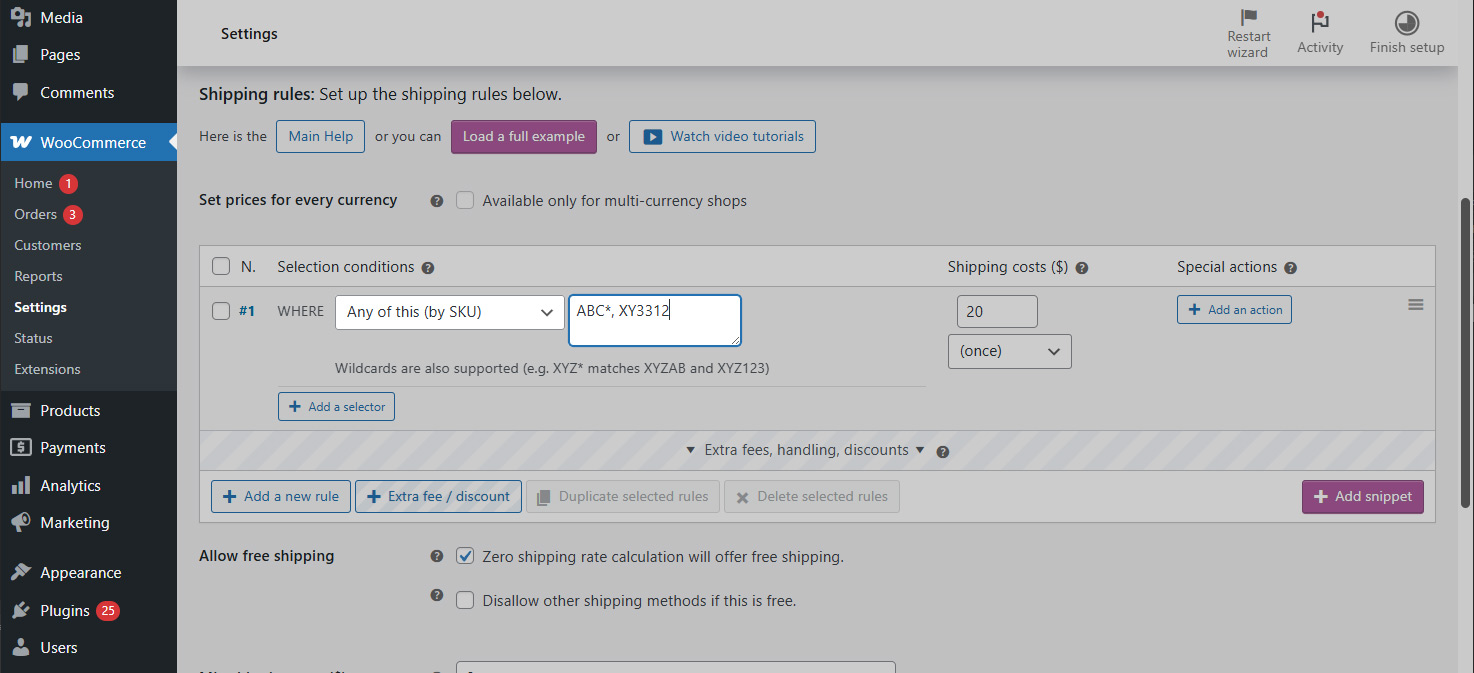
To create Shipping Rules by SKU in WooCommerce, follow these steps:
- Add a new shipping rule to the rules table
- Choose the selector “ANY of this SKU” to define which products the rule applies to
- Enter one or more SKUs, separated by commas
- Use wildcards (asterisks) to match multiple SKUs with similar patterns — for example, “ABC*” will match all SKUs starting with “ABC-“
- Define the Product-based Shipping Rates for these SKUs in the “Cost” column
- Optionally, add the special action “Matching products skip next rules” to ensure these products don’t participate in later shipping cost rules
- Save and test your rules to make sure they work as expected
Using Wildcards in SKUs for Product-Based Shipping Rules: How It Works
Wildcards (*) are symbols used to represent any sequence of characters in SKU filters. This feature allows you to create broad or partial matches instead of listing each SKU individually.
- “ABC-*” matches all SKUs that start with “ABC-“, such as ABC-001, ABC-123
- “*-XL” matches all SKUs ending in “-XL”, useful for size variations
- “*123*” matches any SKU that contains “123” anywhere in the code
Using wildcards saves time and reduces errors when applying Product-Based Shipping Rules to entire product ranges or variations. Future products that follow the same SKU pattern will also automatically inherit the correct Product-based Shipping Rates.
Common Mistakes When Using Wildcards in Shipping Rules by SKU
When working with wildcards, be careful to avoid these common mistakes:
Relying on case sensitivity
SKU pattern matching is case-insensitive, and even accents are ignored.
For example, “ABC*” will match Abc123, aBc333, or ÁBcZZZ without any issues.
Overly broad matches
Using patterns that are too general (e.g., “*A*”) will apply the rule to all products that contain an “A” anywhere in the SKU. This can lead to unintended results in your Shipping Rules by SKU.
Too-generic prefixes
Setting patterns like “AB*, ABB*, ABC*” is redundant—and potentially misleading. The first pattern “AB*” already matches all SKUs beginning with “AB”, including ABB1234 and ABZ9999.
If you want to target SKUs starting with “ABC”, “ABF”, and “ABJ”—while avoiding SKUs like ABX123 or ABM661—you should specify:
“ABC*, ABF*, ABJ*”.
If you need to match many “AB*” patterns except “ABX*”, you can use negative logic to exclude certain SKUs without listing every possible combination.
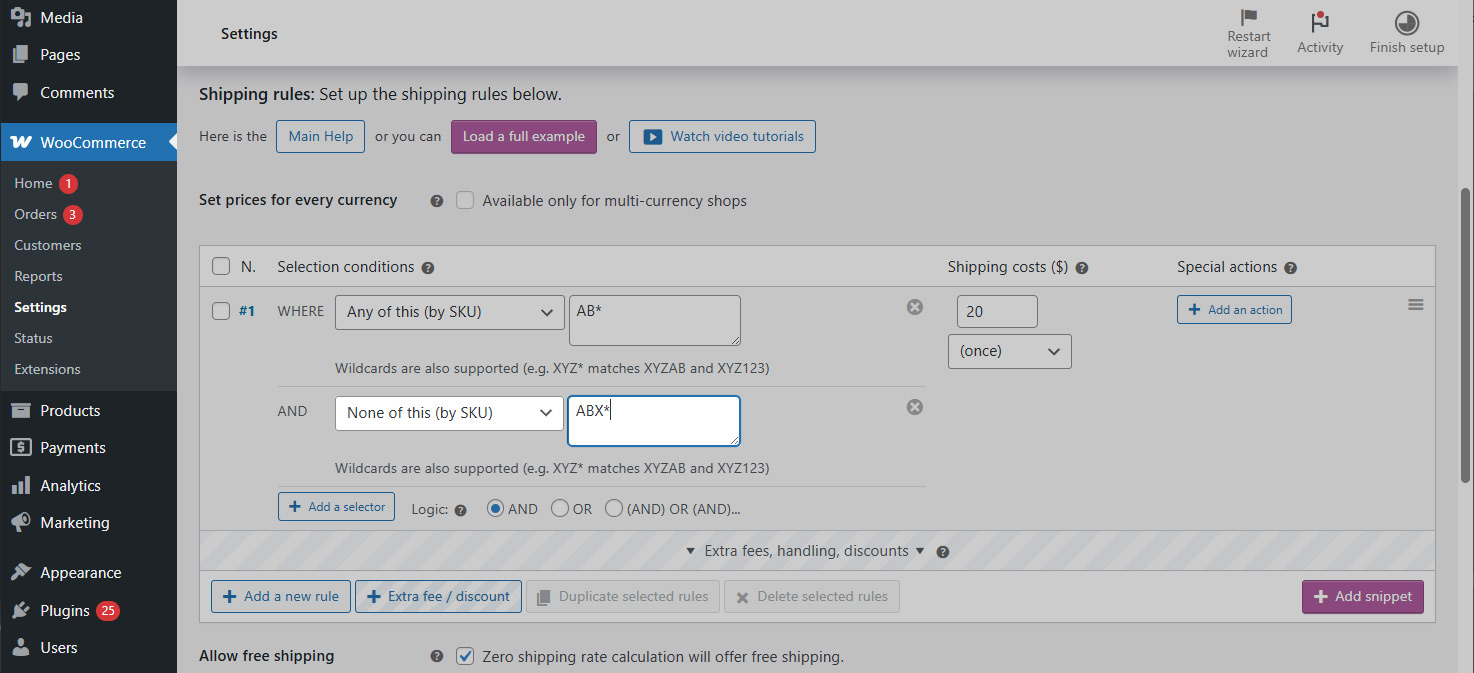
How to Disable Shipping Method in WooCommerce: Product-Based Using SKUs
There may be cases where you want a specific shipping method to be unavailable when certain products are in the cart.
In this case, you can combine the “Any of these SKU” selector with the special action “Abort shipping method”. To do this, follow these steps:
- Create a new rule and place it at the top of the list
- Select the SKU filter and enter the SKUs you want to target (use wildcards like “ABC*” if needed)
- Add the special action “Abort shipping method”
- Important: Make sure there is at least one other shipping method available for the same shipping zone — otherwise, customers won’t be able to check out with those products (unless that’s your intention)

This setup ensures that a specific shipping method will not appear when certain products are in the cart, using Product-Based Shipping Rules with Shipping Rules by SKU for precise control.
How to Block Checkout or Prevent Sales Using Product-Based Rules by SKU
Sometimes, certain products simply can’t be shipped to specific shipping zones.
In this case, instead of repeating the rule from the previous section across all shipping methods, you can choose to hide all shipping methods entirely.
- Create a new rule and move it to the top of the list
- Use the selector “ANY of this SKU” to enable conditional execution based on product SKU
- Add the actions “Hide other shipping methods” and “Abort shipping method”
- Optionally, you can also add a “Show notice message” or “Change cart totals messages” action to inform your customers why the purchase can’t be completed
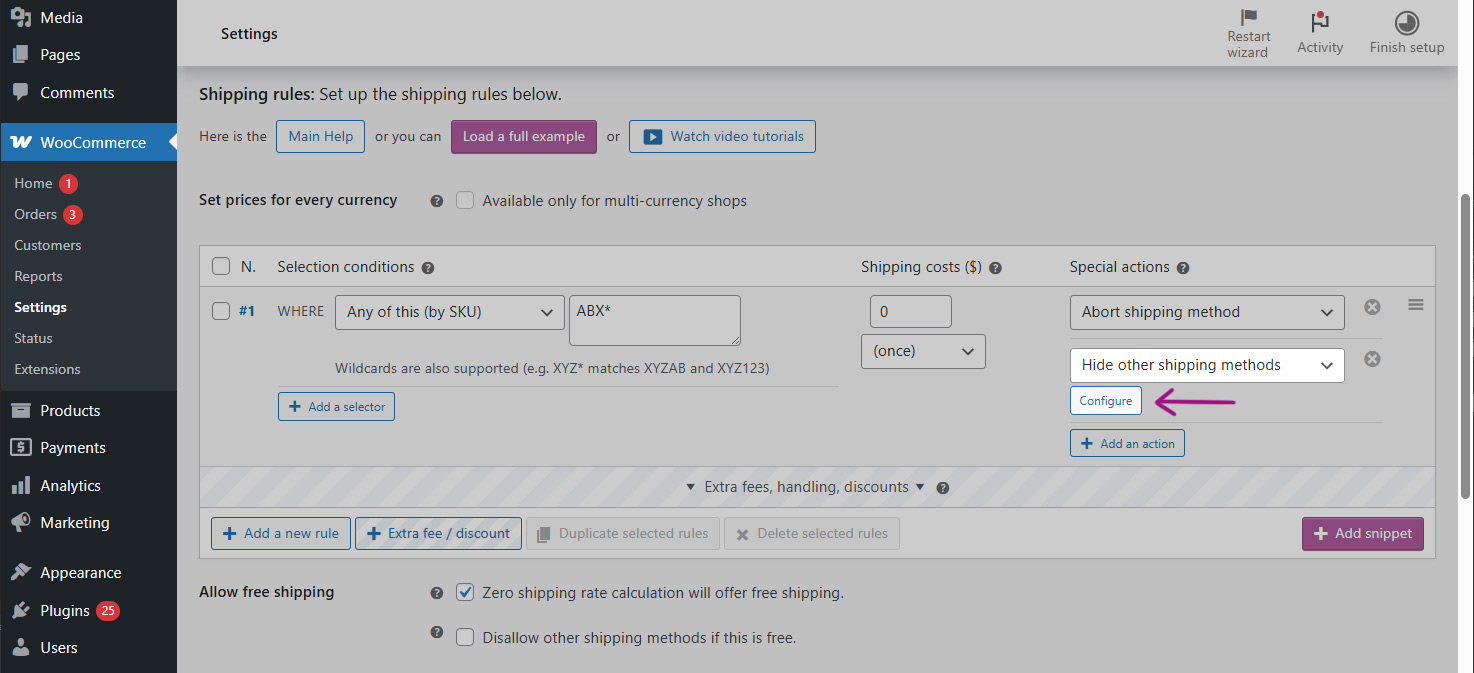
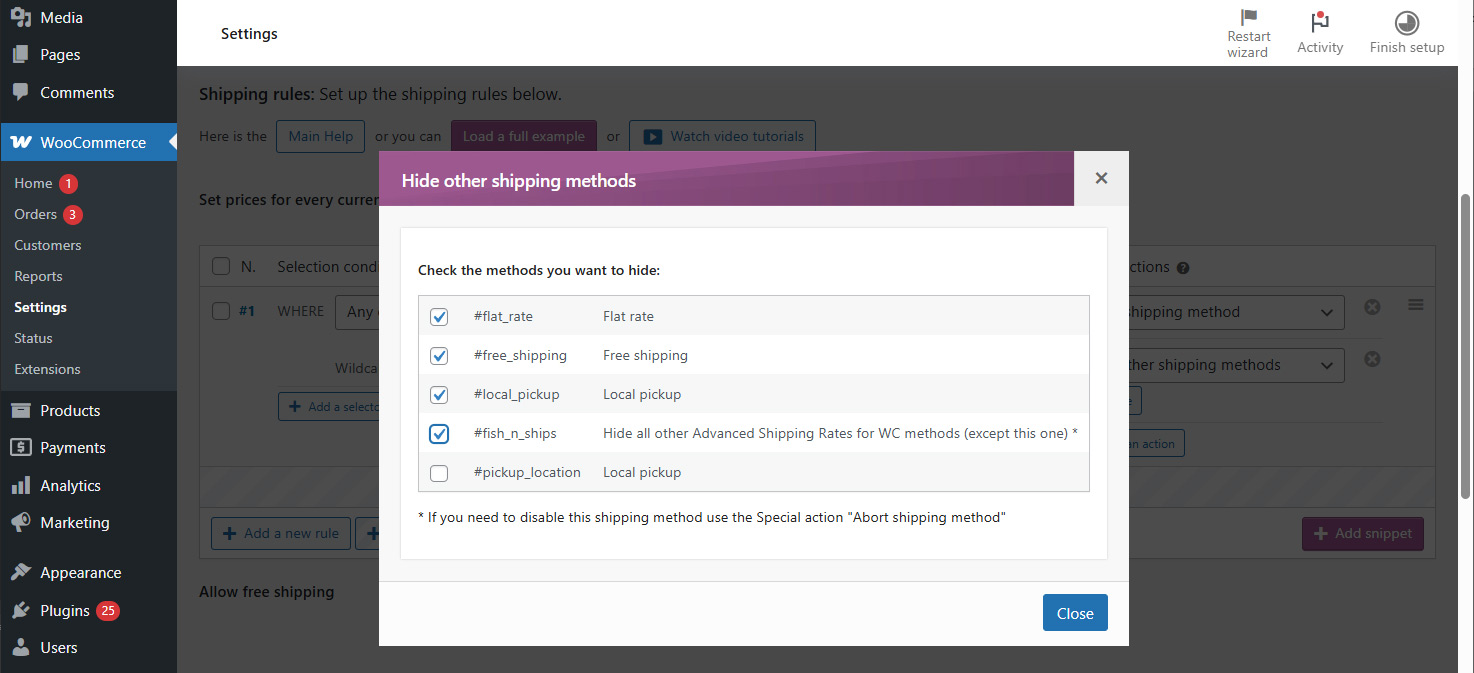
This setup prevents customers from completing checkout with restricted products in their cart, using Product-Based Shipping Rules and Shipping Rules by SKU for precise control.
How to Add Extra Handling Fee Using Product-Based Rules by SKU
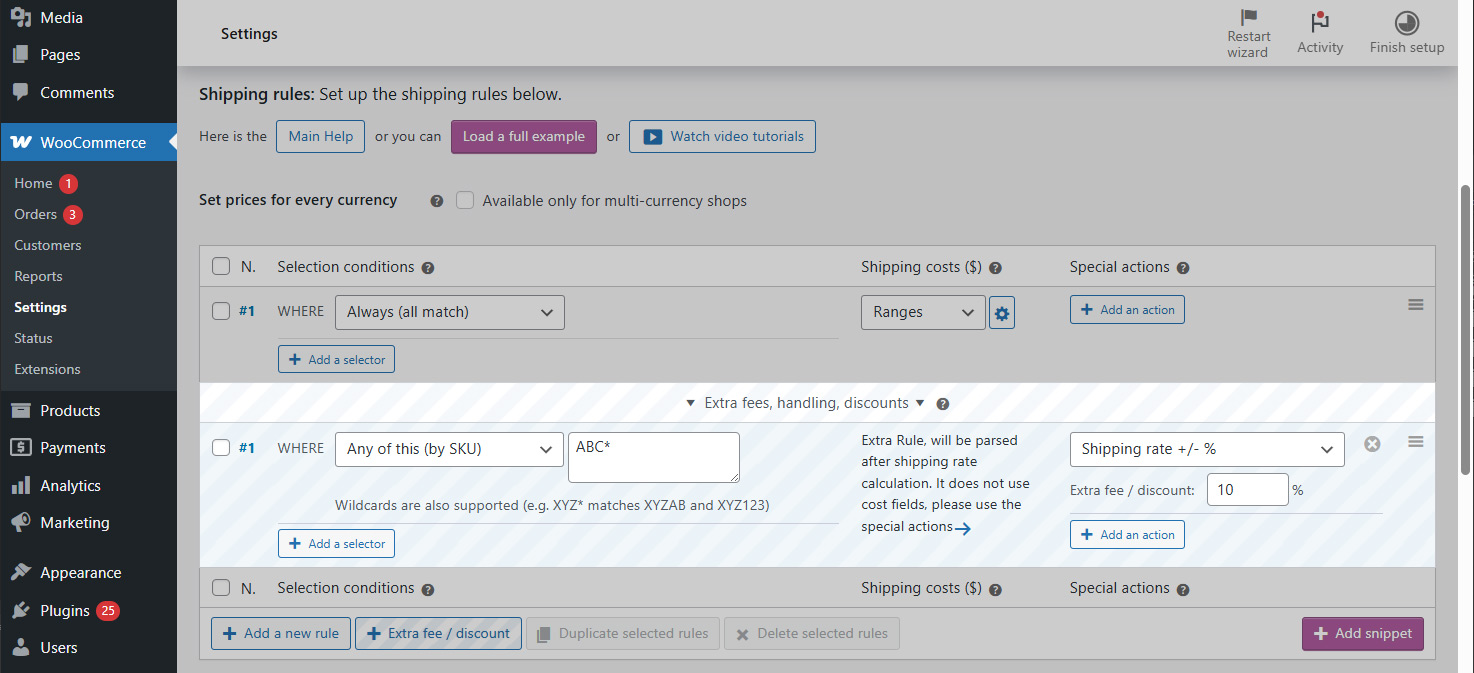
At the bottom of the rules table, there’s a section that allows you to apply extra fees.
Unlike regular rules, this section is executed after the total shipping cost is calculated — unlocking a special action: applying a percentage-based fee on the total shipping cost.
- Go to the Extra fees section at the bottom of the rules panel
- Click on “+ Extra fee / discount”
- Use the selector “ANY of this SKU” to define the products
- Add the special action “Shipping rate +/- %” to apply an additional percentage over the shipping cost
Negative Logic: Applying Rules When NONE of These SKUs Are in the Cart
This feature can be very useful but often goes unnoticed: the “NONE of these SKU” selector is the final piece of the puzzle when setting shipping rates product-based by SKU in WooCommerce.
This selector works similarly to the previously seen “ANY of these SKU,” but with a completely opposite approach. Instead of applying a rule when any of the selected products are in the cart, this rule only activates when none of the specified products are in the shopping cart.
This negative logic is especially practical when you want to set general conditions that apply to most products but need to create specific exceptions for a smaller group. For example, you can define standard shipping rates that apply to your entire catalog but product-based exceptions for certain SKUs that have special shipping or pricing requirements.
By setting up two rules—one with “NONE of these SKU” and another following it with “ANY of these SKU”—you can easily and visually differentiate the shipping rates for these different product groups.
In summary, this tool allows you to precisely control when to apply general shipping rates, ensuring that exceptional products are handled in a differentiated and optimal way.
When NOT to Use SKU for product-based shipping rules in WooCommerce
Using Shipping Rules by SKU is very useful for precise control over one or a few product lines, but keep in mind:
- If exceptions affect many different product lines, it might be better to use shipping classes, producto categories, or producto tags to simplify your product-based shipping rules.
- SKUs are unique identifiers; if you can’t determine clear patterns in your SKUs, managing the rules may become difficult.
- Avoid overcomplicating rules with too many SKU conditions — it will be harder to maintain the rules and quickly understand which products are affected.
- Use Product-Based Shipping Rules by SKU when you need detailed control but can keep it simple and manageable.
Looking for rules for individual products? Check out this other method →
If you prefer not to filter by SKU, consider using Product-Based Shipping Rules for specific products. This method is always clearer—and therefore better—if you don’t need to discriminate between many products: How To Shipping Rates per Product in WooCommerce.